

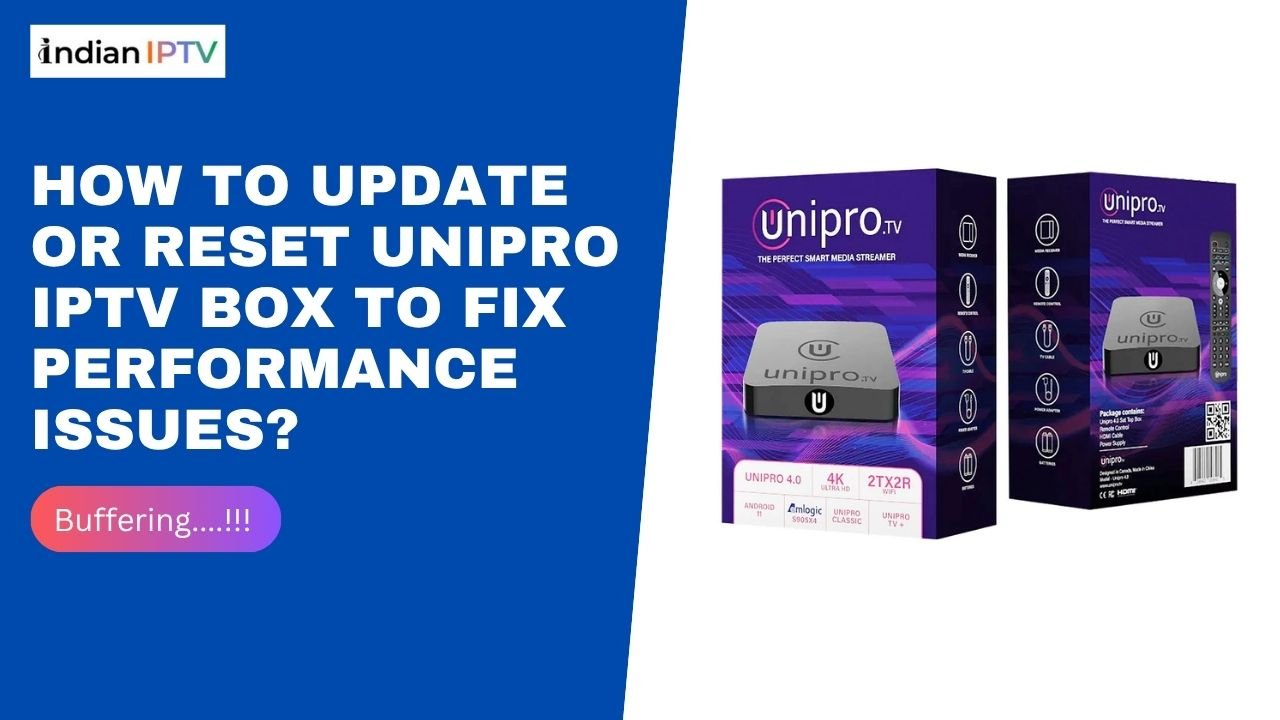
A smooth and lag-free streaming experience depends heavily on how well your Unipro IPTV Box is updated, configured, and maintained. Many users often face slow loading, buffering, missing channels, or occasional app freezes, which usually point to outdated firmware, overloaded cache, or system errors. The good news? Most of these issues can be fixed in minutes by performing simple updates or a clean system reset.
In today’s digital era, where people rely on streaming platforms for news, movies, sports, and entertainment, optimizing your IPTV device is more important than ever. Whether you’re using a service from an Indian IPTV Provider or streaming content through a different subscription, device maintenance directly impacts your viewing quality.
This guide covers step-by-step methods to update, reboot, and reset your device safely, along with performance tips that help your IPTV system run efficiently every day.
Why Does Your Unipro IPTV Box Slow Down Over Time?
Every streaming device gradually collects temporary files, cache data, outdated apps, and background tasks that affect performance. As a result, users face:
- Frequent buffering
- App crashing
- Lag while switching channels
- Channels not loading
- Slow home screen navigation
Your Unipro IPTV Box may also struggle if it hasn’t received firmware updates for a long time. Updates include bug fixes, new features, and improved security that help the device run at peak performance.
Before you think about replacing your IPTV box, a quick update or reset can revive it back to its original speed.
How to Check for Updates on Your Unipro IPTV Box
Updating the system should always be your first troubleshooting step. Most performance issues are resolved after applying the latest firmware patch.
Here’s how to check for updates:
1. Open the Settings Menu
Navigate to the settings icon on your home screen. Depending on your model, it may appear as a gear symbol.
2. Select “System Update” or “Firmware Update”
Newer versions detect updates automatically. Others require manual checking.
3. Click “Check for Updates”
If an update is available, the device will notify you instantly.
4. Download and Install the Update
Ensure your internet connection remains stable during the update. Interrupting the process may cause errors.
5. Restart the Device After Updating
A restart helps the system apply new settings, refresh the cache, and stabilize performance.
When Should You Reset Your Unipro IPTV Box?
If updating does not fix the issues, a reset is your next solution. Resetting restores the box to its original factory settings, removing:
- Corrupted files
- Malware-infected apps
- Excessive cache
- Hidden errors or glitches
- Unwanted addons
- Outdated configurations
Before resetting, ensure you know your login details for your Indian IPTV subscription, as you may need to re-enter them after the process.
Types of Reset: Soft Reset vs. Factory Reset
Soft Reset (Reboot)
A soft reset simply restarts the device. It is useful for:
- Temporary freezing
- Slow navigation
- Minor glitches
Factory Reset
A full factory reset wipes the entire system. It is recommended when:
- Channels refuse to load
- Apps keep crashing
- System is extremely slow
- Device is not responding
- Incorrect settings cause errors
How to Perform a Soft Reset
A soft reset is the safest and simplest option.
Method 1: Using the Power Button
- Press and hold the power button for 10 seconds.
- Release when the screen goes dark.
- The device will reboot automatically.
Method 2: Unplugging the Power Cable
- Turn off the device.
- Unplug it for 30 seconds.
- Plug it back in and restart.
This clears temporary cache files and fixes minor streaming interruptions.
How to Perform a Factory Reset on Your Unipro IPTV Box
If your device continues to lag after updates and restarts, a factory reset will usually solve the problem.
Step-by-Step Factory Reset Guide
- Go to Settings
From the home screen, open the settings menu. - Select “Device Preferences” or “Advanced Settings”
The label varies depending on your box version. - Choose “Reset” or “Factory Reset”
Confirm your selection. - Select “Erase Everything”
This process takes several minutes. - Restart the Box
After wiping, the box will reboot and load fresh system software.
Once the reset is complete, reconfigure your apps and log back into your Indian IPTV subscription to restore your channels.
Tips to Improve Performance After Reset
A reset brings your device back to its original speed, but maintaining it requires proper usage habits. Here are some performance-boosting tips:
1. Use High-Speed Internet
Streaming quality depends heavily on your Wi-Fi strength. For smooth HD and 4K viewing, use at least 50 Mbps.
2. Clear App Cache Regularly
Heavy streaming apps store large cache files that slow down the system. Clear them once a week.
3. Avoid Too Many Apps
Unnecessary apps consume memory. Keep only essential streaming apps installed.
4. Keep the Firmware Updated
Updates deliver improved performance, stability, and channel compatibility.
5. Restart the Box Every Few Days
Reboots clear temporary files and prevent lag buildup.
Trending Tips for Unipro IPTV Users
Here are some helpful practices users are following in 2025:
- Using dual-band routers enhances connection stability.
- Ethernet cable connections are becoming more popular for smoother IPTV streaming.
- Users are increasingly choosing devices that support H.265/H.266 codecs to reduce buffering.
- Cloud-based EPG services are trending for better channel guide performance.
Implementing these habits ensures your IPTV box stays faster for longer.
Final Thoughts:
Your Unipro IPTV Box is designed to deliver seamless entertainment, but like any device, it needs periodic updates and resets to perform at its best. Whether you’re streaming content from an Indian IPTV Provider or browsing through regional channels, maintaining your device ensures fewer interruptions, better speed, and a more enjoyable viewing experience.
By following the simple steps outlined above—updating your firmware, rebooting the system, and performing a factory reset when necessary—you can fix most performance issues without needing technical support. With proper care, your IPTV device will continue delivering reliable and high-quality entertainment for years to come.
