
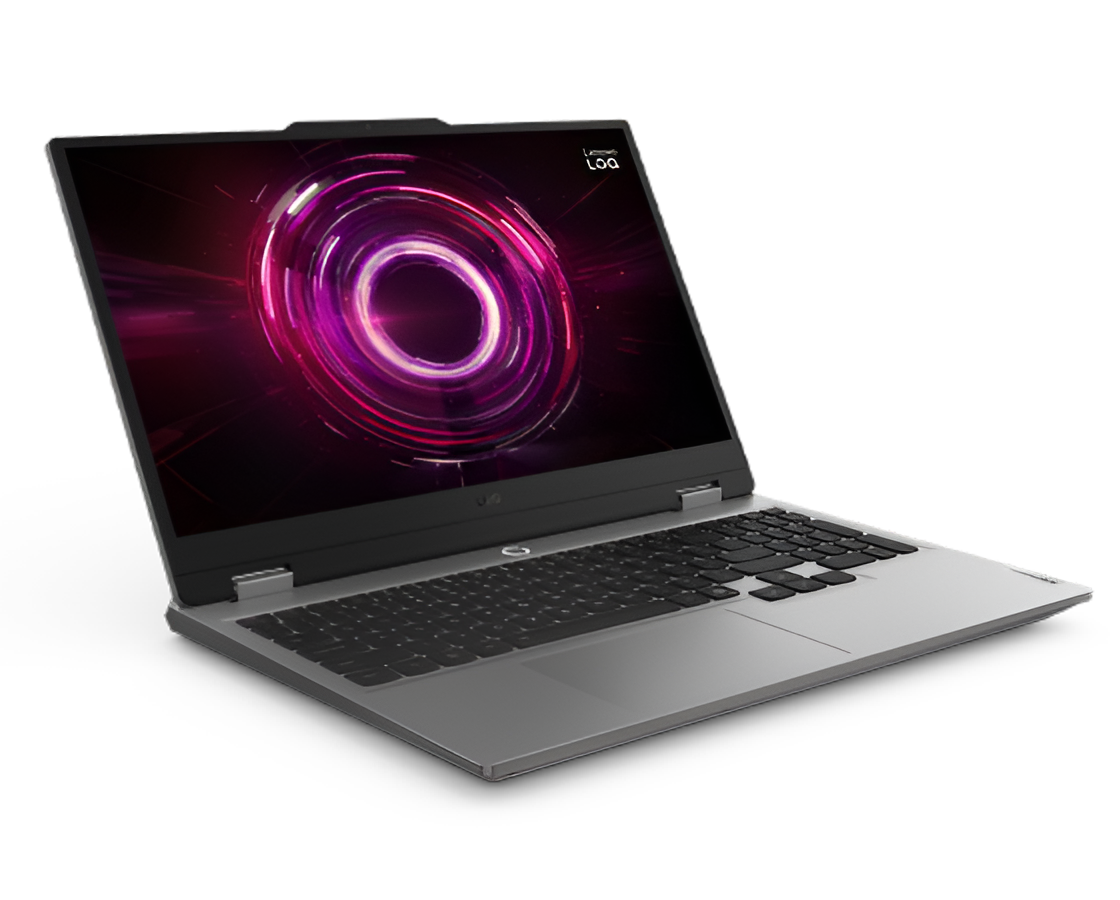
You sit down after a long day, ready to watch your favorite show. You press play, and the video starts buffering. The screen freezes every few seconds. The audio cuts out randomly. This ruins your entire mood. Many people face this problem daily. Your computer might not be ready for heavy streaming. For streaming, you must have proper hardware and very good internet. Whether you just binge-watch or stream by yourself on YouTube or other platforms, a stable internet with a high-performing computer for streaming can make all the difference.
These seven simple checks will tell you everything. You can fix most problems easily. Let’s find out if your computer can stream without any trouble.
1. Check Your Internet Speed First
Your internet speed matters more than anything else because the best computers for streaming rely heavily on a stable, fast connection, so even a high-end setup feels instant and lag-free. Streaming eats up a lot of data every second. You need fast internet to watch videos smoothly.
Here’s what different streaming qualities need:
- Standard quality videos need 3 Mbps.
- HD videos need 5 Mbps.
- Full HD videos need 10 Mbps.
- 4K videos need 25 Mbps.
Your internet speed should be higher than the minimum requirement. This gives you a buffer zone. Other devices in your home use the internet too. Your phone and tablet also need bandwidth.
2. Look at Your Processor Power
Your processor is the brain of your computer. It handles all the work when you stream videos. A weak processor causes stuttering and freezing.
Modern streaming needs these processor types:
- Intel Core i3 or better.
- AMD Ryzen 3 or better.
It is very simple to locate your processor details. Just do a right-click on “This PC” or “My Computer” and choose Properties. The name of the processor will appear on the display. Note it and perform an online search to find out if it is sufficient.
Older computers from 5-7 years ago may not be capable of streaming in 4K. They can work fine to stream HD videos. You don’t always need the latest processor. A mid-range processor handles most streaming tasks perfectly.
3. Check Your RAM Memory
RAM is your computer’s short-term memory. It holds information that programs need right now. Streaming uses RAM to load video data quickly.
Different streaming qualities need different amounts of RAM:
- Basic streaming needs 4GB RAM
- HD streaming needs 8GB RAM
- 4K streaming needs 16GB RAM
Finding your RAM amount is super easy. Open the same Properties window you used for the processor. The RAM shows up as “Installed Memory” or just “RAM”. The number appears in GB.
Low RAM causes videos to buffer frequently. Your computer starts using hard drive space instead. This makes everything very slow. You see the loading circle more often than the actual video.
4. Test Your Graphics Card
Your graphics card displays the video on your screen. It decodes the video file and turns it into pictures. Streaming high-quality videos requires a decent graphics card.
Most computers have two types of graphics:
- Integrated graphics built into the processor
- Dedicated graphics cards that are separate
Integrated graphics work fine for normal HD streaming. Dedicated cards handle 4K and multiple screens better. You can check your graphics card in the same Properties menu. Look for “Display Adapters” in Device Manager.
Popular graphics cards for streaming include:
- NVIDIA GeForce series.
- AMD Radeon series.
- Intel Iris Plus graphics.
5. Examine Your Hard Drive Space
Your computer stores temporary streaming data on your hard drive. Browsers create cache files while you watch videos. These files need storage space.
Keep at least 20GB of free space on your main drive. This gives your computer room to work. Full hard drives make everything slow down. Videos take longer to load and play.
You can check your storage space easily. Open File Explorer and click on “This PC”. Each drive shows a colored bar. Blue means used space, and gray means free space. The exact numbers appear below each drive.
Clean up your hard drive regularly:
- Delete old downloads you don’t need.
- Empty your recycle bin completely.
- Remove programs you never use.
- Clear browser cache and cookies.
6. Review Your Browser Choice
Not all browsers stream videos equally well. Some browsers use less memory. Others have better video playback features. Your browser choice affects streaming quality.
The best browsers for streaming are:
- Google Chrome
- Mozilla Firefox
- Microsoft Edge
- Safari for Mac users
Chrome uses more RAM but plays videos very smoothly. Firefox uses less memory overall. Edge works great with Windows computers.
7. Monitor Your Background Programs
Programs running in the background steal computer resources. They use RAM and processor power. This leaves less for your streaming needs.
Common resource-hungry programs include:
- Antivirus scans are running constantly.
- Cloud backup services sync files.
- Gaming platforms are updating games.
- Video editing software processing files.
Press “Ctrl + Shift + Esc simultaneously” to bring up the Task Manager for inspection on programs that are currently running. A window opens showing all active programs. Look at the CPU and Memory columns. Programs using high percentages cause problems.
Close programs you don’t need right now. Some programs start automatically with your computer. You can disable these auto-start programs. This speeds up your computer and saves resources for streaming.
Conclusion
It requires a good setup to utilize the full potential of computers for streaming. These seven checks reveal potential problems. Most issues have simple fixes that cost nothing. You don’t need an expensive new computer yet.
Start by testing your internet speed and closing background programs. Check your RAM and processor next. Update your drivers and browser regularly. Make sure to clear and manage your hard drive. Those minor adjustments can remarkably enhance the quality of the streaming. Spend a quarter of an hour today to run through these controls. You will future-proof your streaming experience for months to come.
